
If you’ve ever submitted artwork for screen printing or embroidery and been told your file "isn’t the right format," you’re not alone. It’s one of the most common questions we hear at Dr. Tee’s Design & Screen Printing, and it usually comes down to one thing: your file isn’t a vector. So, what file formats are vector, exactly? That’s what this article breaks down.
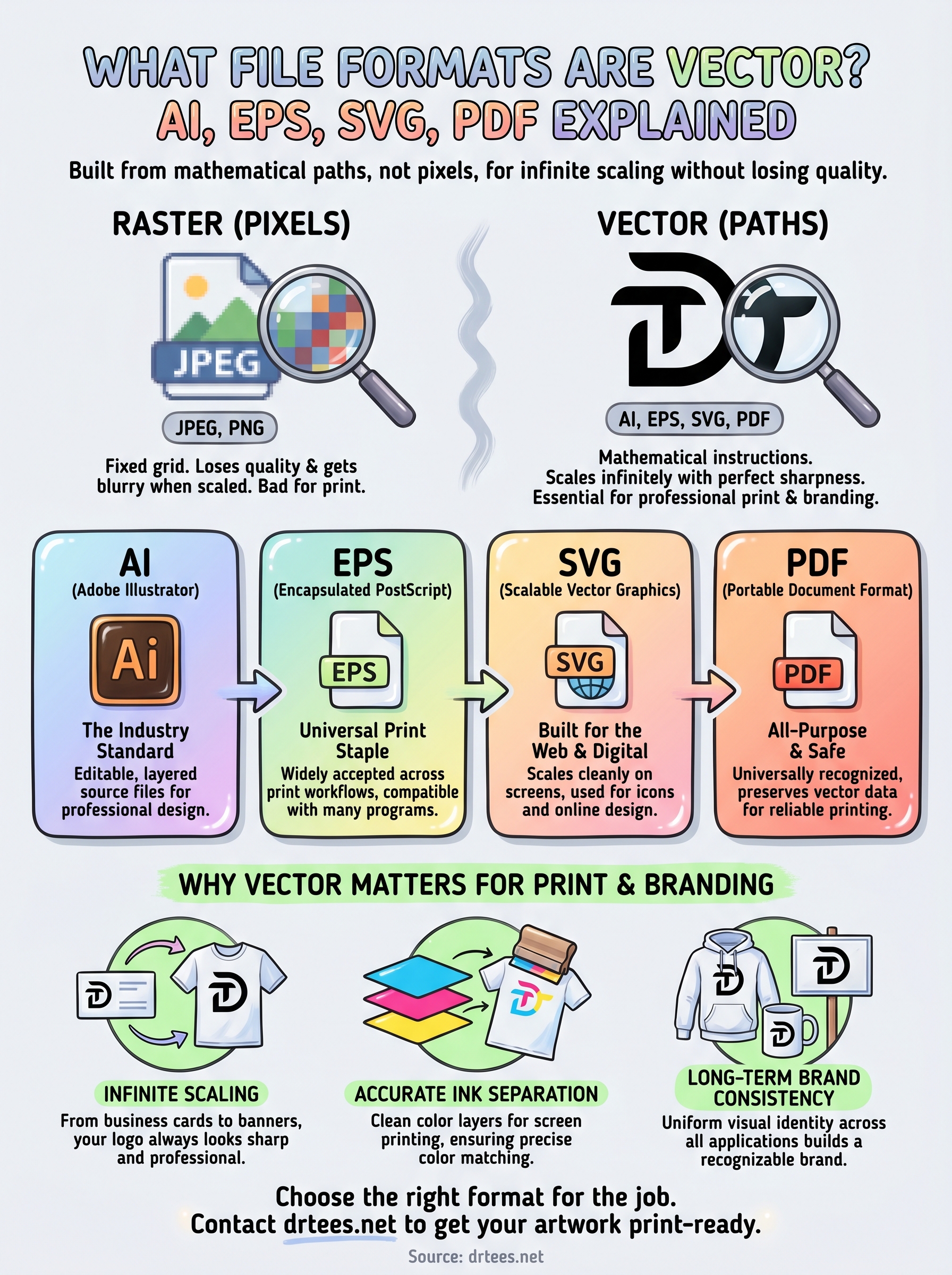
Vector files, like AI, EPS, SVG, and PDF, are built from mathematical paths instead of pixels. That distinction matters because vector graphics can scale to any size without losing quality, which is critical when your logo needs to look sharp on a business card and across the back of a hoodie. Raster images (JPEGs, PNGs) can’t do that. They fall apart when you stretch them, and that’s where print quality problems start.
After over 20 years of designing and printing custom apparel in Kansas City, we’ve seen every file type imaginable come through our inbox. This guide covers the most common vector file formats, explains what makes each one useful, and clarifies how they differ from raster images, so next time you send artwork to a printer, you’ll know exactly what to send and why it matters.
Why vector formats matter for print and branding
When you send a file to a screen printer or embroidery shop, the format you choose directly affects the quality of the finished product. Vector files give printers the clean, scalable artwork they need to produce sharp results at any size. Raster images (like JPEGs and PNGs) are made up of a fixed grid of pixels, which means they have a hard ceiling on how large they can go before they start to look blurry or blocky. That’s why print shops almost always ask for vector files, and why knowing the difference between formats matters before you ever place an order.
Scaling without losing quality
One of the biggest reasons vector formats matter is that they scale infinitely without degrading. A vector logo looks just as crisp on a 2-inch chest print as it does across a 4-foot banner. That flexibility comes from how the file is built: instead of storing color data for individual pixels, a vector file stores mathematical instructions that describe shapes, curves, and lines. The software recalculates those instructions at whatever output size you need, so the result is always sharp.
If you ever stretch a JPEG logo and notice it goes soft or blurry around the edges, that’s a pixel-count problem that vector files simply don’t have.
Most clients don’t realize this until their artwork comes back looking worse than they expected. If your designer delivered your logo as a PNG, that works for websites, but a print shop needs the original vector source file to produce clean, professional results at production scale.
Color accuracy and ink separation
Screen printing works by laying down one ink color at a time, which means each color in your design needs to be separated into its own layer before printing begins. Vector files make that process straightforward because shapes and fills are defined as distinct, editable objects. A printer can isolate each color, assign the correct ink, and set up the screens accurately without guesswork.
Raster files make this considerably harder. When colors blend together as pixels, separating them cleanly requires extra work and can introduce inconsistencies in the final print. That’s one reason many print shops charge additional fees or reject certain raster files entirely.
Why file format affects your brand long-term
Your logo shows up on business cards, apparel, signage, vehicle wraps, and digital platforms. Using the wrong file format early in that process creates visual inconsistency across every application. Understanding what file formats are vector helps you protect your brand from the start. When you hand a printer the right file, every print run looks identical, whether you’re ordering 12 shirts or 500, and that consistency is what builds a recognizable, professional brand over time.
The main vector file formats and what they do
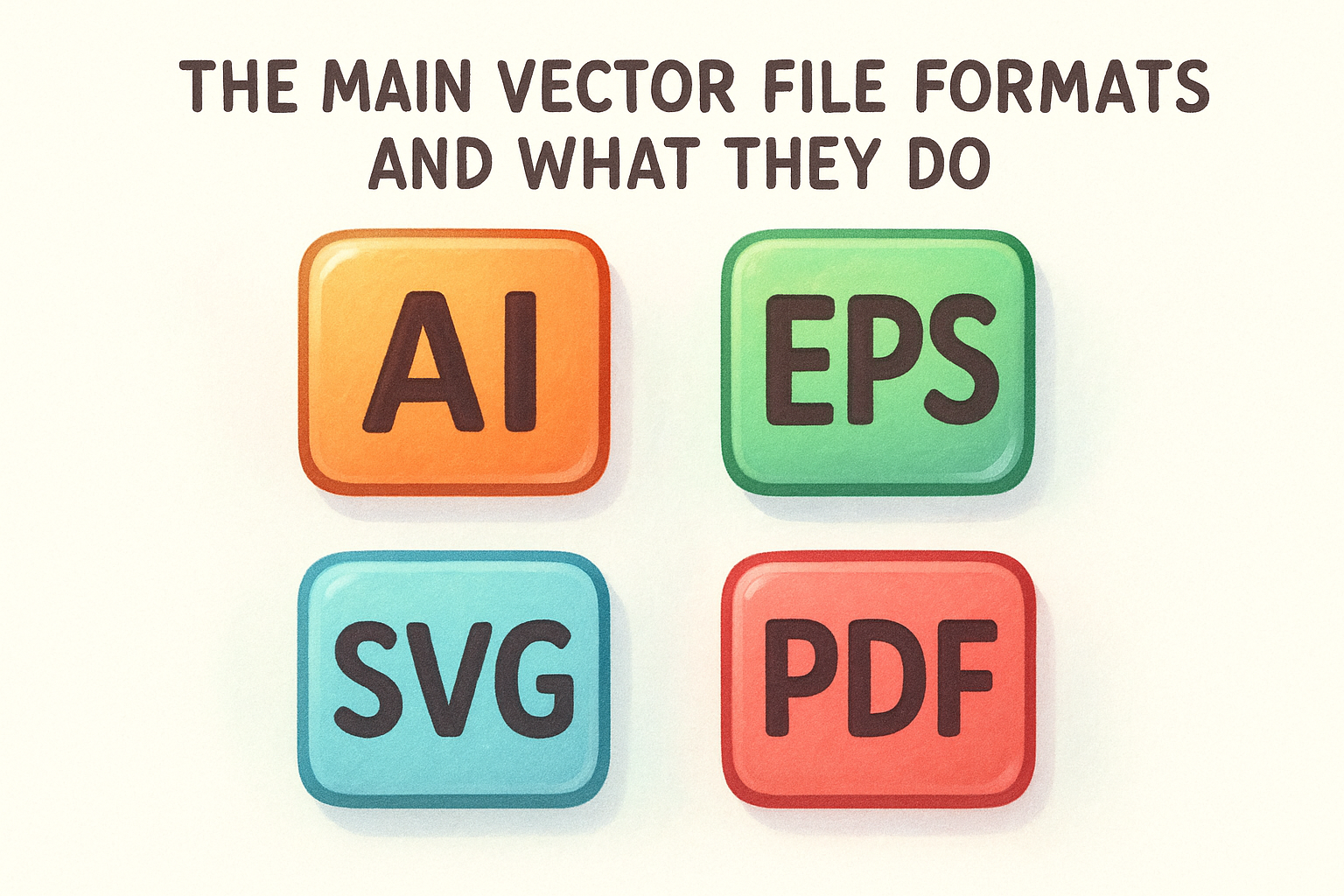
When someone asks what file formats are vector, the answer almost always starts with four: AI, EPS, SVG, and PDF. Each one serves a slightly different purpose, but all four share the same core advantage of storing artwork as scalable mathematical paths rather than a fixed grid of pixels. Knowing what each format does helps you request the right file from your designer and deliver clean artwork to your printer.
AI and EPS: the print industry staples
Adobe Illustrator (.AI) is the format most professional designers work in. It stores every element of your artwork as an editable, layered vector object, which makes it the cleanest file type to hand off to a screen printer or embroidery shop. EPS (Encapsulated PostScript) is older but remains widely accepted across professional print workflows. Many shops prefer it because it’s compatible with a broad range of software without requiring Illustrator to open it.
If your designer delivers a logo package, always ask for the .AI or .EPS source file alongside any PNGs or JPEGs they include.
Both formats support exact color definitions using Pantone or CMYK values, which matters when a printer needs to match your brand colors precisely across multiple production runs.
SVG and PDF: flexible formats for more contexts
SVG (Scalable Vector Graphics) is a vector format built primarily for the web. Browsers read it natively, and it scales cleanly at any screen resolution without losing sharpness. Many print shops also accept SVG files, though some older prepress systems handle it less reliably than AI or EPS. PDF (Portable Document Format) is the most universally recognized format on this list. When saved correctly from Illustrator or similar professional software, a PDF preserves all vector data intact and is accepted by nearly every print provider without compatibility issues.
Other vector formats you may run into
Beyond the four main formats, several other vector file types show up in real-world design and production workflows. Knowing what they are helps you communicate more clearly with designers and vendors who might deliver files in less common or industry-specific formats.
CDR: CorelDRAW’s native format
CorelDRAW (.CDR) is a professional vector editor with a large user base, particularly in sign-making and manufacturing industries. CDR files store fully scalable vector data but are only natively editable in CorelDRAW, so your printer may need to convert the file before production begins.
Most professional screen printing and embroidery shops can accept CDR files, but it’s always worth asking before your deadline. Confirming compatibility in advance prevents unnecessary delays and avoids the back-and-forth that comes from sending the wrong format at the last minute.
DXF: the format from CAD software
DXF (Drawing Exchange Format) comes from the computer-aided design world and shows up most often in vinyl cutting, laser engraving, and precision signage work. You won’t encounter it much in standard screen printing, but it’s worth recognizing when a vendor or template provider sends one your way.
If you receive a DXF file for an apparel or branding job, ask your print shop whether they can open it directly or need it converted to EPS or PDF first.
WMF and EMF: older Windows-based vector files
WMF (Windows Metafile) and EMF (Enhanced Metafile) are vector formats built into the Windows operating system. You’ll run across them in older clip art libraries or documents exported from Microsoft Office tools.
Neither format works well for professional print production, and understanding what file formats are vector includes recognizing these so you can convert them to EPS or PDF before sending artwork to a shop. Most design software handles that conversion without much effort.
How to tell if a file is truly vector
Not every file with a .PDF or .EPS extension is automatically a vector. Plenty of designers save raster images inside vector containers, which means the file looks like a vector format on the outside but carries none of the scalability benefits on the inside. Knowing how to verify a file before you send it to a print shop saves you time and prevents the frustration of a rejected order.
Try scaling it up
The simplest test is to zoom in as far as possible inside the file using design software or even a PDF viewer. A true vector file stays perfectly sharp no matter how close you zoom, because the shapes are defined mathematically and recalculate at every zoom level. A raster image embedded in the same file will start to show blurry edges and visible pixels as you zoom in.
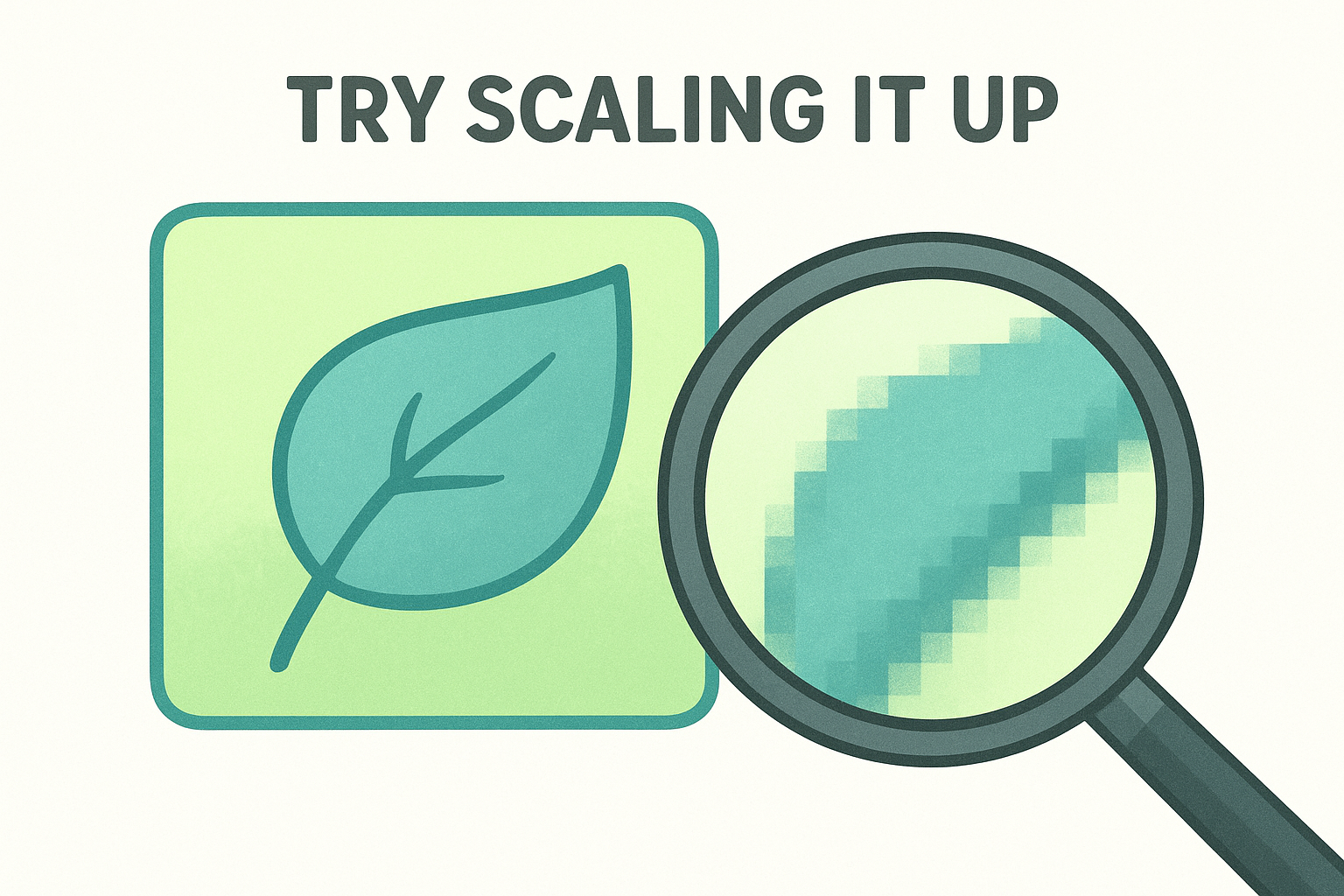
If your logo looks fuzzy at 500 percent zoom, you’re looking at a raster image regardless of the file extension.
Check the file extension against its source
Understanding what file formats are vector is only useful if you also know where the file came from. An EPS exported directly from Adobe Illustrator is a genuine vector file. An EPS created by exporting a JPEG through a basic conversion tool is not. Ask your designer to confirm the original software and source file used to create the artwork, and request the native AI or EPS file they worked in rather than an exported copy.
Open it in design software
The most reliable method is to open the file in Adobe Illustrator or Inkscape and click on individual shapes. If the software lets you select and edit separate paths, curves, and anchor points, the artwork is truly vector. If you click on your logo and it highlights as a single flat image, that’s a raster file embedded inside a vector wrapper, not a usable vector source.
How to choose the right vector format
Knowing what file formats are vector is only half the equation. The other half is picking the right one for your specific situation. Your choice depends on where the artwork is going, who is producing it, and what software they’re running on their end. Sending the wrong format doesn’t always cause an immediate problem, but it adds friction, delays production, and sometimes results in a shop having to ask you to resend.
When to use AI or EPS
If you’re handing artwork to a screen printer, embroidery shop, or commercial print vendor, AI or EPS is almost always the right call. Both formats carry full vector data, support precise Pantone and CMYK color definitions, and open cleanly in professional prepress software without compatibility surprises. Most shops list them as their preferred formats for exactly that reason.
When you order custom apparel and want your brand colors to match across every production run, AI and EPS give your printer the cleanest starting point.
If your designer works in Adobe Illustrator, ask them to save the native .AI file and export an EPS alongside it. That way you have both the editable source and a universally compatible version ready for any vendor.
When to use SVG or PDF
SVG works best for web use, digital tools, and situations where your artwork needs to render cleanly across multiple screen sizes. Many online design platforms and website builders accept SVG natively, which makes it the practical choice for anything digital-first.
PDF is the safest all-purpose format when you’re unsure what software your print vendor uses. A properly exported PDF from Illustrator preserves all vector paths and color data, and nearly every professional print system opens it without issues. When in doubt, PDF is the format that creates the fewest problems on the receiving end.
Wrap-up and next steps
Understanding what file formats are vector gives you a real advantage every time you work with a designer or send artwork to a print shop. AI and EPS are the go-to formats for screen printing and embroidery, PDF works reliably across nearly every vendor, and SVG handles digital and web applications well. Knowing the difference between a true vector file and a raster image embedded inside a vector wrapper helps you avoid rejected orders and wasted time.
Your next step is straightforward. If you have a logo or design and you’re not sure whether it’s print-ready, bring it to a shop that can evaluate it directly. At Dr. Tee’s Design & Screen Printing, we review artwork before production starts and flag any issues before they become problems on press. Get a quote and submit your artwork to start the conversation with our team today.
