
You need a logo. Maybe you’re launching a new business, starting a sports team, or finally putting a name on your side hustle. Professional designers can cost hundreds or even thousands of dollars, but you don’t always have that budget, especially when you’re just getting started. That’s where the Canva logo maker comes in. This free, browser-based tool gives you everything you need to create a clean, professional-looking logo without design experience.
This guide walks you through the entire process step by step. You’ll learn how to access Canva’s logo tools, customize templates, use their AI features, and export your finished design in the right format for printing.
At Dr. Tee’s Design & Screen Printing, we work with Kansas City businesses every day who bring us logos, some from professional designers, others from tools like Canva. A solid logo file makes screen printing smoother and ensures your branded apparel looks sharp. Whether you design it yourself or need our team to help refine it, we’ve got you covered. Let’s get your logo made.
What you need before you start
You can jump into the Canva logo maker without any software downloads or complicated setup. The entire process happens in your web browser, and you’ll have a finished design within 20 to 30 minutes if you move quickly. However, gathering a few basic items before you start will save you time and keep you focused on design instead of searching for information mid-project.
The best logo sessions happen when you already know what you want to say, even if you’re not sure exactly how to say it visually.
Essential account details
You need a free Canva account to access the logo templates and editing tools. Sign up at canva.com using your email address, or connect through your Google or Facebook account for faster access. Canva’s free plan gives you everything required for basic logo design, including thousands of templates, icons, and fonts.
If you already have an account, make sure you can log in before you start. Password resets can eat up 10 minutes when you’re in the middle of creating.
Your brand information ready
Have your business name finalized and spelled exactly as you want it to appear. If you’re using a tagline or slogan, write that down too. You should also think about two or three colors that represent your brand, even if you don’t know the exact color codes yet. Canva lets you pick from palettes, but knowing your general direction (blues, earth tones, bright colors) speeds up decisions.
Keep any existing brand materials handy if you have them. Old logos, color swatches from paint samples, or photos that capture your brand’s feel all help guide your choices inside the editor.
Step 1. Define your logo basics fast
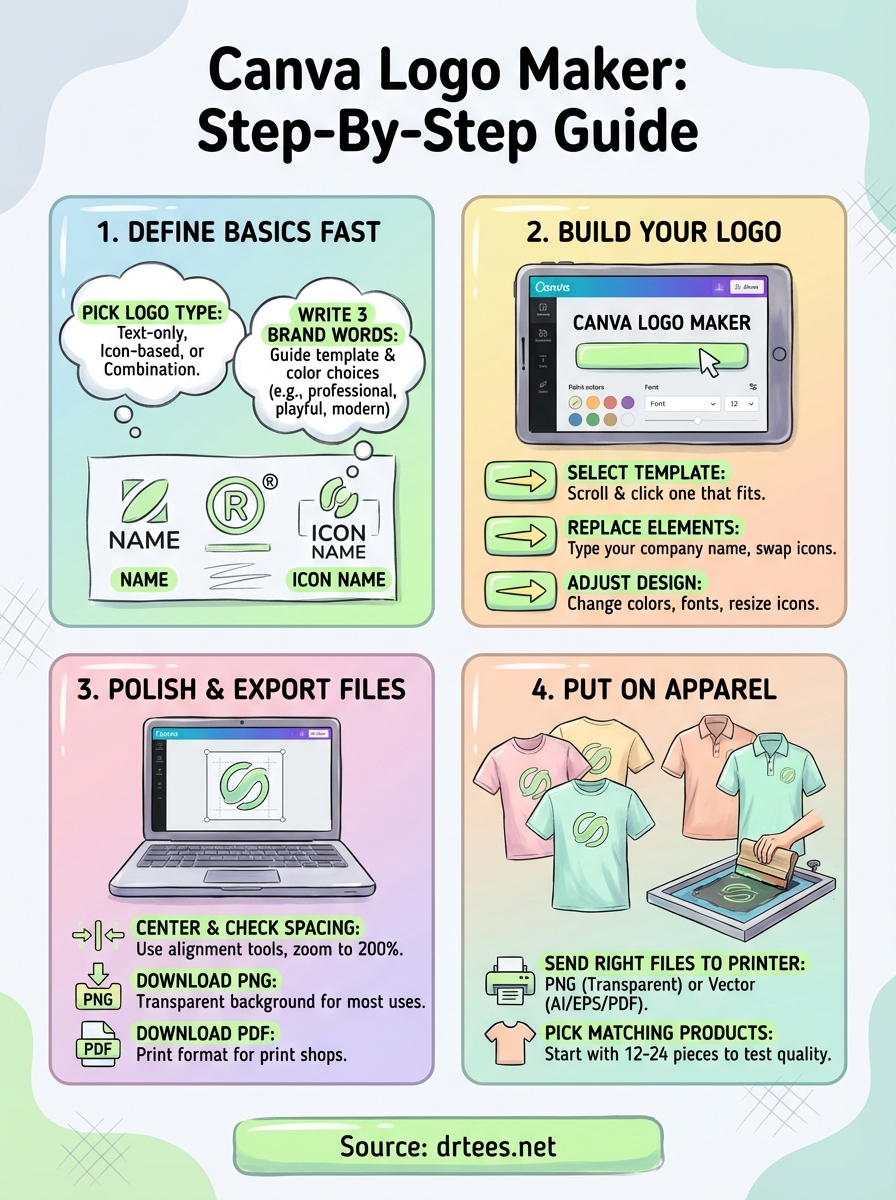
Before you touch the Canva logo maker, spend five minutes making three quick decisions. These choices shape which templates work for you and prevent endless scrolling through options that don’t fit your brand. You’re not committing to final details yet, just narrowing your focus so you can work faster once the editor opens.
Pick your logo type
Decide between a text-only logo (your business name in a styled font), an icon-based logo (symbol or graphic with minimal text), or a combination logo (both text and icon together). Text-only logos work well for service businesses with distinctive names. Icon-based designs suit companies with short names or strong visual identities. Combination logos give you flexibility for both apparel printing and digital use.
Most small businesses choose combination logos because they scale better across different applications, from business cards to embroidered polo shirts.
Write down three brand words
List three words that describe how your brand should feel: professional, playful, rugged, modern, trustworthy, creative. These words guide your template selection and color choices inside Canva. If you wrote “professional, trustworthy, clean,” you’ll skip the graffiti-style templates. If you chose “playful, bold, energetic,” you’ll avoid minimal gray designs. This simple filter saves you from decision fatigue later.
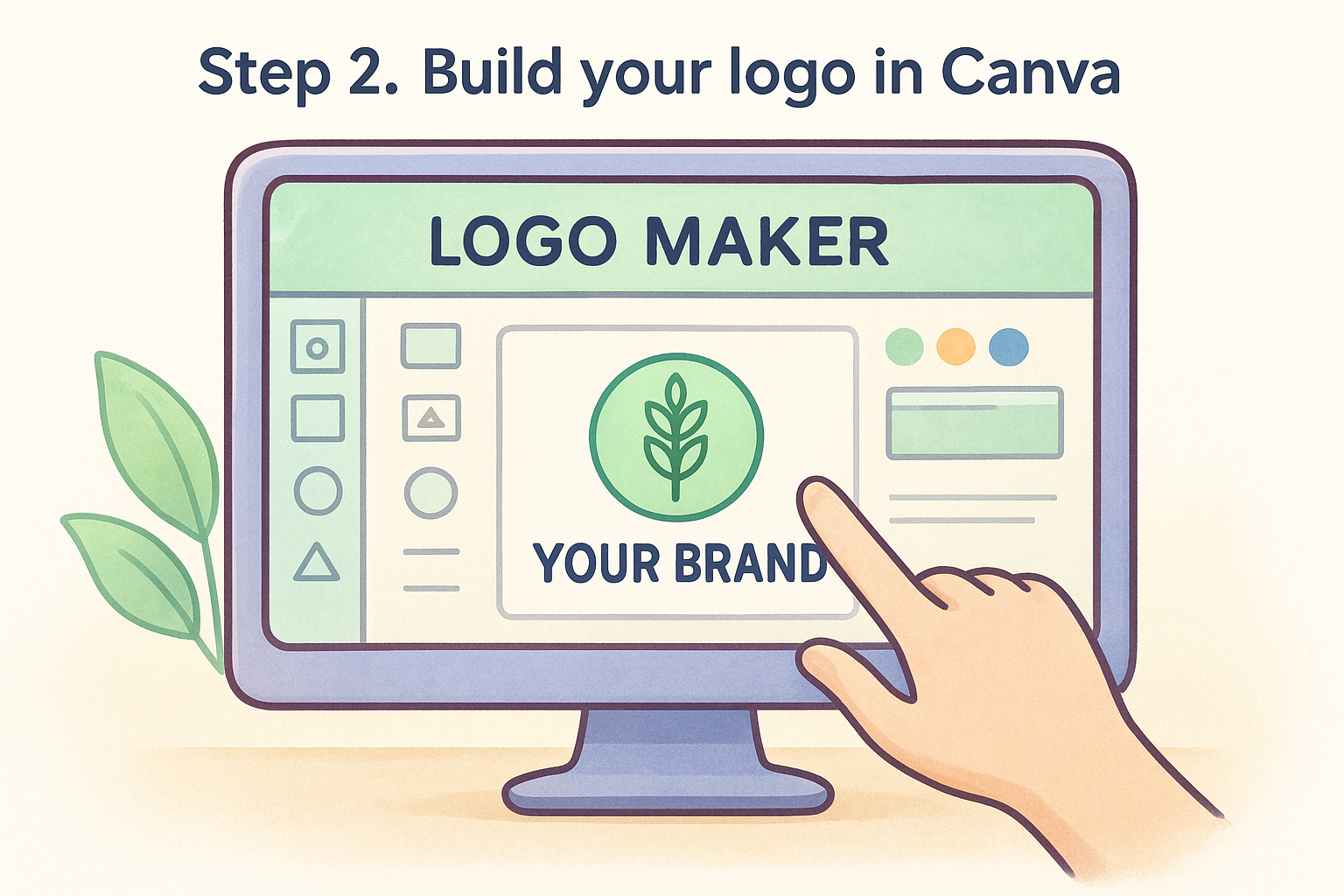
Step 2. Build your logo in Canva
Log into your Canva account and type “logo” into the search bar at the top of the homepage. The Canva logo maker displays thousands of templates sorted by industry, style, and color scheme. You’ll see options for restaurants, fitness brands, tech companies, and general business logos. Scroll through the first two pages and click any template that matches your brand words from Step 1.
Start with a template that fits
Select a template by clicking once on it. The editor opens with your chosen design in the center workspace. You can now edit every element directly. Click the business name text and type your actual company name. The font stays the same at first, but you’ll adjust that next. If the template includes an icon you don’t want, click it once and press Delete on your keyboard.
Replace and adjust design elements
Change colors by clicking any shape or text, then selecting the colored square in the top toolbar. Pick from Canva’s suggested palettes or enter your own hex color codes if you have them. Swap icons by clicking the existing one, then searching “icon” in the left sidebar. Drag new icons directly onto your canvas and resize them by pulling the corner handles.
The best logos use two or three colors maximum, making them easier to print and recognize at any size.
Step 3. Polish and export the right files
Your logo design looks good, but you need to tighten the details before downloading. Click anywhere on the blank canvas, then drag a selection box around your entire logo to group all elements together. Use the alignment tools in the top toolbar to center everything perfectly. Click the “Position” button and choose “Center” to ensure your logo sits in the middle of the canvas. Zoom in to 200 percent using the zoom slider in the bottom right corner and check for any overlapping elements or uneven spacing between text and icons.
Download your logo files
Click the “Share” button in the top right corner, then select “Download.” The Canva logo maker gives you multiple file format options. Choose PNG with transparent background for most uses, including screen printing setups and website graphics. Select PDF print format if you plan to send your logo directly to a print shop. Download both formats so you have options ready.
Always download the highest quality setting available, even if the file size is larger, because you can’t improve quality after export.
Set the file quality to “Recommended” or the highest option shown. Name your downloaded file something clear like “CompanyName_Logo_2026” so you can find it later when you need it for business cards, apparel orders, or social media profiles.
Step 4. Put your logo on shirts and more
Your downloaded logo file from the Canva logo maker works for digital use immediately, but physical products like screen-printed shirts, embroidered hats, and promotional items need additional preparation. Most print shops require specific file formats and color information to match your design exactly on fabric. You want your logo to look as sharp on a polo shirt as it does on your screen.
Send the right files to your printer
Contact your screen printing company before you place an order and ask what file formats and color specifications they prefer. Most shops accept PNG files with transparent backgrounds for simple designs, but they may request vector files (AI, EPS, or PDF format) for complex logos or large print sizes. Tell them how many colors appear in your logo because screen printing charges per color per location, and knowing this upfront prevents surprise costs.
Screen printers can convert most Canva logos into print-ready formats, but starting with clean files saves time and ensures accuracy.
Pick products that match your brand
Start with 12 to 24 pieces of one product type to test quality and fit before ordering larger quantities. T-shirts and polo shirts give you the most logo visibility and wearability for team uniforms or promotional giveaways. At Dr. Tee’s Design & Screen Printing in Kansas City, we help local businesses choose the right garment weights, colors, and brands that complement their logos and stay within budget.
Next steps
You created a professional logo using the Canva logo maker and downloaded the files you need for printing. Your design sits ready on your computer, waiting to appear on t-shirts, hats, polo shirts, or branded apparel that represents your business in the real world. The next move puts that digital file onto physical products your team wears or your customers receive.
Contact Dr. Tee’s Design & Screen Printing to turn your new logo into high-quality screen printed or embroidered garments. We work with Kansas City businesses every week to take logos from various sources and prepare them for production. Our team handles file conversion, color matching, and quality control so your finished shirts look exactly how you envisioned them when you designed the logo. Start with a small order of 12 pieces to test the quality and fit, then scale up when you’re satisfied. Get a quote for your first order and we’ll walk you through product options, pricing, and turnaround times that fit your budget.
